
A lawyer, an accountant or HR needs "the emails as PDFs". What you have is a
folder of .eml files, or a single .mbox file exported
from Gmail, Thunderbird or Apple Mail. Here is how to turn them into PDFs on
your Mac, one at a time or hundreds at once, without uploading a single
message.
Ways to convert EML to PDF on a Mac
1. Apple Mail: one message
- Double-click the
.emlfile. It opens in Mail. - Choose File › Export as PDF.
- Pick a name and folder, and click Save.
This is the right tool for a single email. For ten or more it gets tedious, because you name and save each PDF by hand.
2. Apple Mail: many messages into one PDF
- Get the messages into one mailbox in Mail and select them all.
- Choose File › Print.
- Open the PDF menu in the print dialog and choose Save as PDF.
You get one combined PDF, not one per email, and the original file names are gone. That is fine for reading, but it is exactly the gap people hit with legal discovery requests, where every message has to be its own named file.
3. Apple Mail: an MBOX file
Choose File › Import Mailboxes, pick Files in mbox format, and select the file. The messages appear as a new mailbox in Mail's sidebar. From there, use the print route above.
4. 2anything: whole folders and mailboxes, one step
Full disclosure: we make 2anything. For one email, Mail is all you need. 2anything is for when you have a folder of emails, a whole mailbox, or a request to keep every message as its own file.
- Drop your
.emlor.mboxfiles onto 2anything. - Choose PDF.
- Click Convert.
Each .eml becomes its own PDF next to the original, with the same
name, so 2024-03-14 Contract.eml becomes
2024-03-14 Contract.pdf. An .mbox becomes a single PDF
with every message in mailbox order, separated by a line. The command-line
form converts a whole folder at once:
2anything *.eml --to pdf
2anything archive.mbox --to pdf
What is an EML file?
An .eml file is one email saved exactly as it travels between mail
servers, in the standard internet message format. Open one in a text editor
and you will see it is plain text.
- Headers come first. Lines such as
From:,To:,Subject:andDate:, plus technical ones that record the servers the message passed through. - Then the body, in MIME parts. MIME lets one message carry several versions of itself. Most emails include both a plain-text and an HTML version of the same text, so any mail app can show something.
- Attachments are encoded as text. A PDF or photo is turned into base64, a run of letters and digits, which makes each attachment about a third larger inside the email than on disk.
Apple Mail stores messages on disk in a slightly different format,
.emlx. It is the same message with a byte count in front and some
Mail-specific data at the end. When you drag a message out of Mail into a
Finder folder, Mail saves it as a regular .eml.
What is an MBOX file?
An .mbox file is a whole mailbox in one file: every message, one
after another, each starting with a line that begins with From
and a space. It is the oldest mailbox format still in use, and the common
export format. Google Takeout exports Gmail as MBOX, and Thunderbird and Apple
Mail can both export mailboxes in it.
How 2anything gets from email to PDF: chained conversions
Here is something most converters don't say. Practically no tool turns an email straight into a PDF. They lay the email out as a web page first, Mail included, and then print that page. 2anything does the same, but openly, as a chain of two conversions.
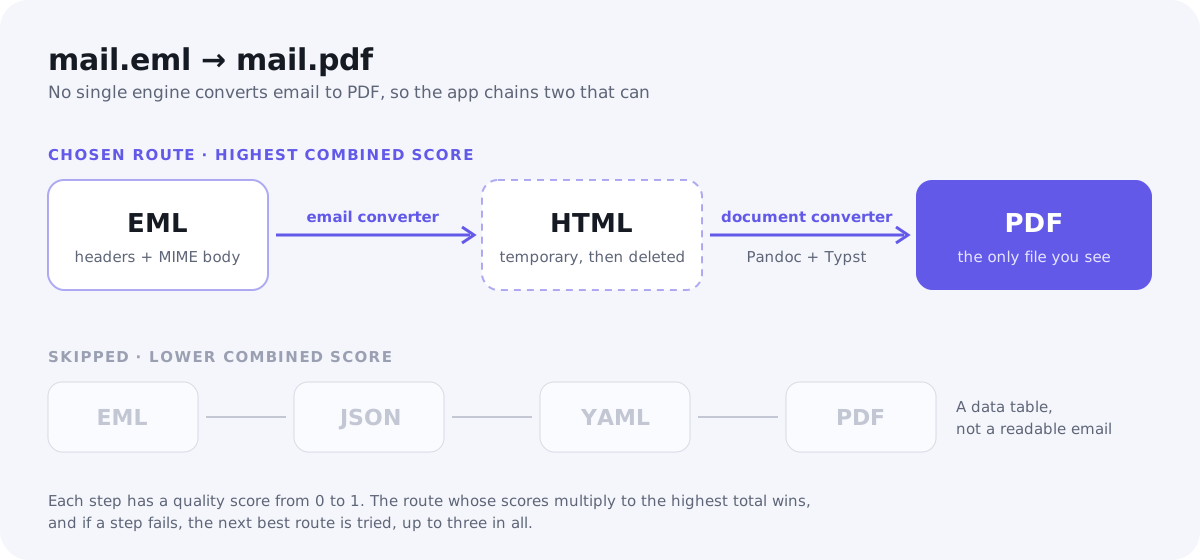
The mechanics are simple once you see them:
- A map of formats. 2anything has more than 20 conversion engines, each able to handle certain pairs of formats. Together they form a map, with formats as places and conversions as roads between them.
- Every road has a score. Each conversion step is rated from 0 to 1 for how much it keeps. Email to HTML loses a little structure. HTML to PDF keeps almost everything.
- The best route wins. When no single engine can do the job, the app looks for the route whose scores multiply to the highest total. Two steps at 0.9 and 0.8 give 0.72, which beats three steps at 0.85 each, at about 0.61. Technically, this is a shortest-path search on the map.
- A fallback is ready. If a step fails, the app moves on to the next best route, up to three in all.
- The middle step disappears. The HTML is written to a temporary folder and deleted as soon as the PDF is made, even if something goes wrong. The only file you see is the PDF.
For email, the route is EML to HTML with the email converter, then HTML to PDF with the document converter, which uses the bundled Pandoc and Typst tools to typeset the page. You don't have to know any of this in the app. PDF simply appears as a choice. If you are curious, this command shows each target format with its number of steps and an estimated quality:
2anything --formats mail.emlThe same mechanism powers other routes. Whenever a format has no direct converter to the one you want, 2anything looks for the best path through the formats it does know.
What the PDF keeps and what it drops
The PDF is a clean, readable printed copy of the email. Specifically:
- A header block. The subject is the title, followed by From, To, Cc, Subject and Date, whichever the email has.
- The formatted body. The HTML version of the email is used when there is one, so headings, bold text, links and tables come through. Plain-text emails use the text version.
- Any language. The declared character set is used, with UTF-8 and Latin-1 as fallbacks, so an oddly encoded email still converts instead of stopping with an error.
- Attachments, beside the PDF. They are saved to a folder named after the PDF, ending in
_attachments, and listed by name at the end of the PDF.
And what it leaves out:
- The sender's design. The email is re-typeset as a document. Its colours and CSS layout are not reproduced, so a heavily designed newsletter will look plainer than it did in Gmail.
- Scripts. Anything executable in the email is removed before the page is laid out.
- Images loaded from the internet. Many emails pull images from the sender's server when opened. These are left out, so converting an email never contacts anyone.
Why not an online EML converter?
Email is the most private thing most people ever convert. A mailbox holds contracts, invoices, medical appointments, HR conversations and passwords sent "just this once". An online converter needs you to upload all of it to a server whose retention and logging you can't check. That may be fine. It may also be a problem for a client agreement or, under the EU's GDPR, for other people's personal data in those messages.
Apple Mail and 2anything both convert on your Mac, so the question never arises. The privacy policy covers what the app and website do collect.
EML to PDF FAQ
Can I convert a whole mailbox?
Yes. Export it as an .mbox file and convert that. You get one PDF
with every message in order. If you need one PDF per message, export the
messages as individual .eml files instead.
Are attachments included?
They are listed by name in the PDF and saved as files in a folder next to it. They are not embedded inside the PDF itself.
Does it keep the email's colours and layout?
No. The PDF is a clean document with the email's text, headings, links and tables. For a pixel-exact copy of how the email looked, open it in Mail and use File › Export as PDF.
What about .emlx files from Apple Mail?
2anything reads .eml and .mbox, not
.emlx. Drag the messages out of Mail into a Finder folder to get
.eml files, then convert those.
Is anything uploaded?
No. Reading the email, building the page and writing the PDF all happen on your Mac.
Can I keep one PDF per email with the original names?
Yes. That is the default in 2anything. Every .eml becomes a PDF
with the same name in the same folder, which keeps any numbering or dates in
the file names intact.
The short version
An EML file is one email in plain text, and an MBOX file is a whole mailbox. For a single message, Mail's Export as PDF is the quickest route. For folders and mailboxes, 2anything makes one PDF per email with the names kept, by chaining two conversions through HTML, all on your Mac. For other document formats, see the documents use case page.