
Someone sent you a PDF, and you need to change it: fix a clause in a contract, update last year's report, or reuse a few pages in your own document. A PDF is built to be read, not edited, so the answer is to turn it into a Word file. How well that works depends less on the converter than on what kind of PDF you have.
Ways to convert PDF to Word on a Mac
1. Preview: copy and paste
Open the PDF in Preview, select the text, and copy it into Word or Pages. It is instant and free, and it is fine for a paragraph or two. Formatting doesn't come with it, tables fall apart into loose lines, and you work one page at a time.
2. Microsoft Word: File › Open
If you have Word, choose File › Open and pick the PDF. Word converts it into an editable document as it opens, after a warning that the result may not look exactly like the original. It handles simple PDFs well. On complex layouts, expect to tidy up.
3. Google Docs
Upload the PDF to Google Drive, Control-click it, and choose Open with › Google Docs. Then choose File › Download › Microsoft Word (.docx). It is free, but the PDF is now stored in your Google account, and layout is often lost along the way.
4. 2anything: offline, and many files at once
Full disclosure: we make 2anything. It converts on your Mac without uploading anything, reads scanned pages with OCR, and handles a folder as easily as one file.
- Drop one or more PDFs onto 2anything.
- Choose DOCX.
- Click Convert. The Word file appears next to the PDF, with the same name.
From the command line, one file or a whole folder:
2anything report.pdf --to docx
2anything *.pdf --to docx
The same conversion can produce Markdown, plain text, HTML, EPUB, ODT or RTF instead, and PDF pages can be rendered to PNG or JPG images at a resolution you choose.
Why some PDFs convert perfectly and others don't
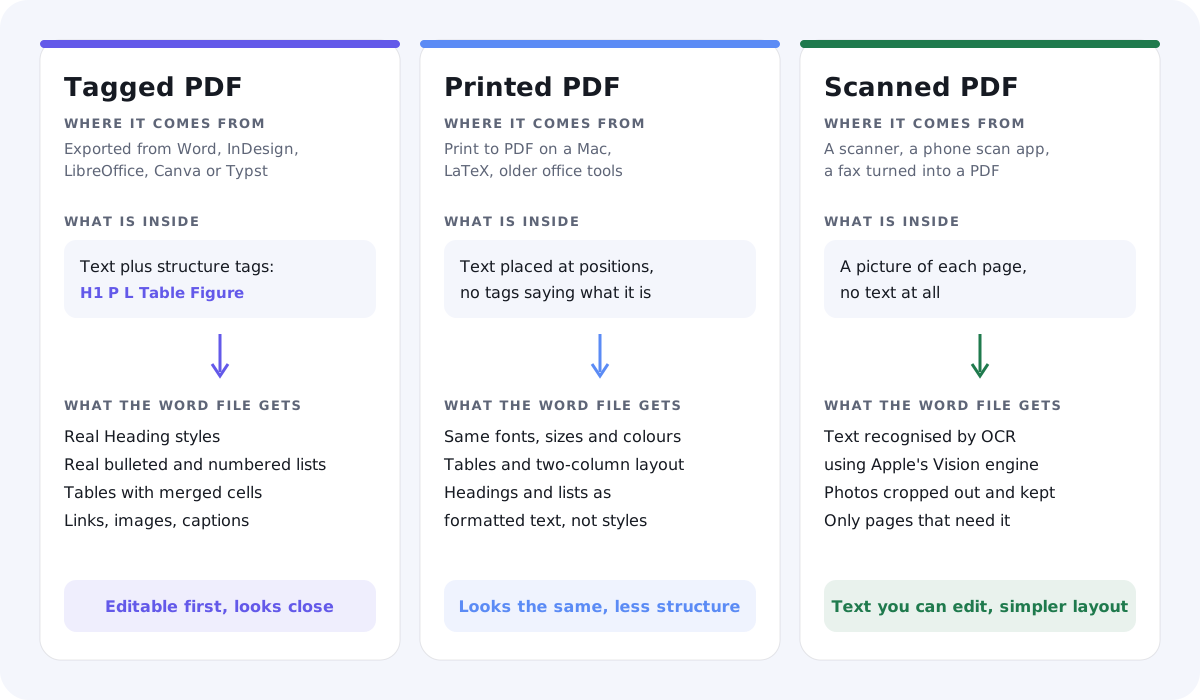
A PDF describes what a page looks like: this glyph at this position, in this font. It doesn't have to say that a line of large bold text is a heading, or that a column of dots is a list. Whether that information is there depends on the app that made the PDF, and it decides how good your Word file will be.
Tagged PDFs: the best case
Word, InDesign, LibreOffice, Canva and Typst can export tagged PDFs. Alongside the visible page, these carry a hidden outline of the document's structure, the same tags screen readers use: this is a heading, this is a list item, this is a table cell. 2anything treats a PDF as tagged when tags cover at least 90% of its text, and rebuilds a real Word document from them:
- Heading 1 to Heading 6 styles, paragraphs, bold and italic
- bulleted and numbered lists, nested up to three levels
- tables, including header cells and merged cells
- working links, and figures as images with their captions
- the document's title and author
The trade-off is deliberate: editability over appearance. You get a document you can restyle in seconds, but not the exact fonts, colours or multi-column layout of the PDF.
Printed PDFs: same look, less structure
File › Print › Save as PDF on a Mac, LaTeX and many older tools produce PDFs without tags. All a converter has is text at positions on a page. For these, 2anything uses a layout engine that recreates the look instead:
- fonts, sizes, colours, bold, italic, underline and highlights
- tables, with or without ruled lines
- images, links, two-column sections, page size and margins
What you don't get is meaning. Headings arrive as large bold text rather than Word heading styles, lists as indented paragraphs with bullet characters, and running headers and footers as ordinary text. Unusual layouts can be misread, for example a neat list taken for a table. Expect to check and tidy.
Scanned PDFs: no text at all
A scan is a photograph of each page wrapped in a PDF. There is no text inside, so a converter has to read the page the way you do. That is OCR, covered next.
Scanned PDFs and OCR
Optical character recognition, OCR, looks at an image and works out which letters are in it. 2anything runs it automatically, using Apple's Vision framework, the same engine behind Live Text on your iPhone. It is built into macOS, so there is nothing to download and nothing leaves your Mac.
- Only the pages that need it. Pages that are images, or whose text is garbled, are recognised. Pages with good text are left alone, which keeps mixed documents accurate.
- Languages are detected automatically.
- Photos are kept. Pictures on a scanned page are cropped out and placed in the document next to the recognised text.
OCR has limits. Text inside photos stays part of the photo, some line-art charts may be left out, and results for Chinese, Japanese, Korean and right-to-left scripts such as Arabic and Hebrew are much weaker than for European languages. A clean, straight scan at 300 dpi gives the best result.
What changes when you convert
From PDF to Word, 2anything keeps:
- all the text, including values typed into PDF forms, which are written into the page before converting
- structure, tables, images and links, as described for each kind of PDF above
It doesn't keep:
- comments, highlights added as annotations, and stamps
- the exact fonts and positions, on tagged PDFs, where editability wins
- heading and list styles, on printed PDFs, where appearance wins
No PDF to Word converter produces a perfect copy every time, whatever its marketing says. Knowing which kind of PDF you have tells you what to expect.
PDF and Word FAQ
Can I convert a password-protected PDF?
It depends on the password. PDFs that only restrict printing or editing convert normally. A PDF that asks for a password to open isn't supported, and you will see a message saying it is password-protected.
Does it work on scanned documents?
Yes. Scanned pages are recognised with OCR automatically, using the engine built into macOS. Results are best with clean scans in European languages.
Will my formatting be preserved?
Partly, and it depends on the PDF. Tagged PDFs keep their structure but not their exact look. Printed PDFs keep their look but not their structure. Scans keep their text and photos in a simpler layout.
Can I convert 50 PDFs at once?
Yes. Drop them onto 2anything together, or run
2anything *.pdf --to docx in their folder. Each one becomes its own
Word file with the same name.
Is anything uploaded?
Not with 2anything or Preview. Everything, including OCR, runs on your Mac. Google Docs stores the file in your Google account. See the privacy policy for what the app and website collect.
The short version
How well a PDF turns into Word depends on where it came from. PDFs exported from Word and similar apps carry tags that let a converter rebuild real headings, lists and tables. Printed PDFs only have positions, so you get the look without the structure. Scans need OCR. 2anything handles all three on your Mac, in batches, with nothing uploaded. For more document formats, see the documents use case page, or read how to convert emails to PDF.